
♜Amazon & e-commerce
What should you put on Amazon infographic images?
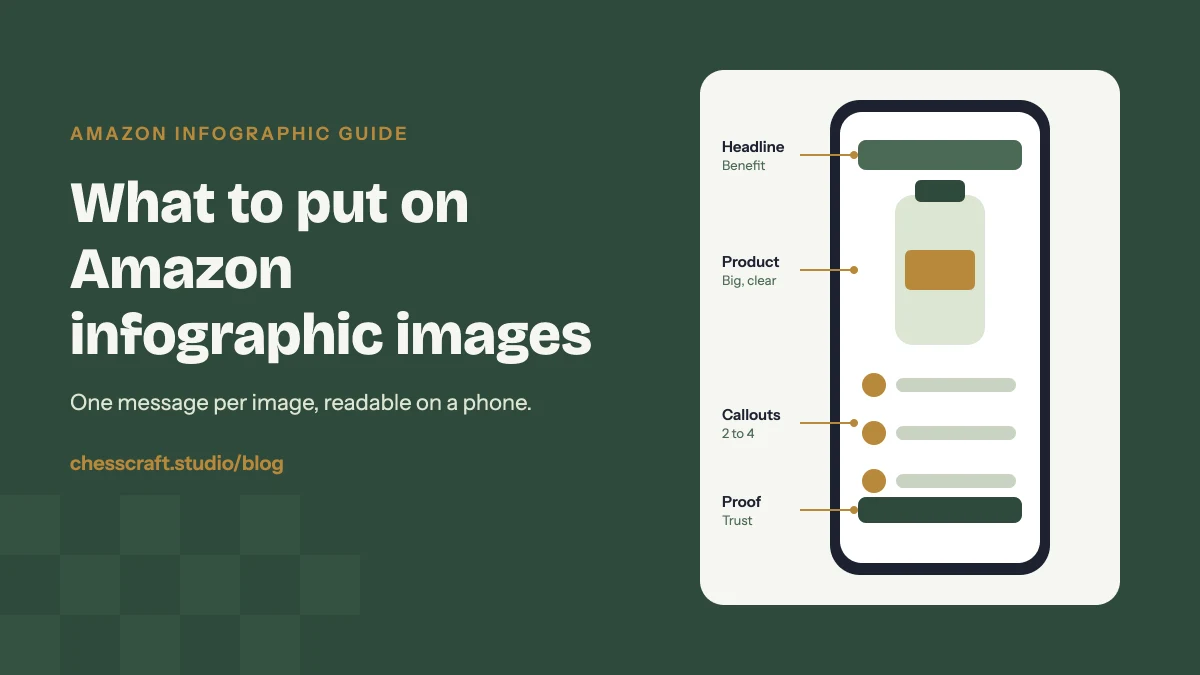
Short answer: one clear message per image. A short benefit headline, the product large enough to recognise, two to four benefit callouts with simple icons, and nothing a shopper has to zoom to read. Each infographic should answer a different question a buyer has, in the order they ask it.
Infographic images are the secondary images in your listing that combine the product with text, icons or diagrams. On a phone, shoppers often swipe through these before they read a single bullet point, so they carry a lot of the selling. The problem is that most infographics are designed on a large monitor and end up crowded, small and hard to read on the screen where people actually shop.
Here is how we plan infographics on our Amazon listing image projects: what to put on each one, how to keep it readable on mobile, and what to leave off.
Start with the questions, not the layout
Before opening a design tool, write down the questions a shopper needs answered before buying. Good sources are your own reviews, competitors’ one and two star reviews, the questions section on similar listings and your return reasons. You will usually find the same handful again and again: Will it fit? Is it easy to use? Is it worth the price compared to the cheaper one? What exactly do I get?
Each infographic then takes one of those questions and answers it visually. If an image tries to answer three questions at once, it answers none of them well on a small screen.
The infographics most listings need
| Image | What to put on it |
|---|---|
| Key benefits | Why buy this one? Three or four benefits, each with a short line and an icon, around the product. Lead with the reason most buyers choose you. |
| Size and fit | Will it fit or suit me? Dimensions on the product, plus a hand, a person or a familiar object for scale. Add capacity or weight if buyers ask about it. |
| Features up close | What makes it better? Two or three close-ups with a short label each: the zip, the seal, the material, the finish. |
| How it works | Is it easy to use? Three numbered steps with one short line each. Great for products people worry about setting up. |
| Comparison | Why not the cheaper one? Your product next to a generic alternative, with a few honest points. Never name or show a competitor’s brand. |
| In the box | What do I get? Every included item laid out and labelled, so nothing is a surprise on delivery. |
Not every product needs all six. A simple product may only need benefits, size and in the box, with the remaining slots used for lifestyle photos. Our guide to how many images an Amazon listing should have shows how infographics fit into the full image stack. Further down the page, A+ Content picks up where the gallery leaves off.
Anatomy of an infographic that reads on mobile
One headline, written as a benefit
Put a short headline at the top: four to seven words that state the outcome for the buyer. “Keeps drinks cold for 24 hours” works better than “Double-wall vacuum insulation”. The feature can sit underneath in smaller text.
The product, big enough to recognise
The product should still be the hero of the image. Shoppers should be able to tell it is the same item from the main image without looking twice. A good rule is that the product takes up at least a third of the frame.
Two to four callouts, each with an icon
Keep each callout to a few words. Use one icon style across the whole set, and keep icons simple enough to read at thumbnail size. If you have six points to make, split them across two images.
Large type and strong contrast
Text that looks fine on a 27 inch monitor can be unreadable at phone size. Use a clean, bold sans serif, avoid thin weights, and make sure the text has strong contrast with its background. Never put text over a busy part of a photo.
Space to breathe
Empty space is what makes a busy image readable. Leave margins around the edges, since some placements crop or overlay the corners, and keep important text away from them.
What to leave off
- Amazon’s own logos and badges. Don’t add Best Seller, Amazon’s Choice or Prime style badges to your images.
- Claims you can’t back up. “Number one”, “best in the world” or medical style claims can get images or listings flagged.
- Prices and temporary offers. They go out of date and can conflict with what the listing shows.
- Competitor brand names or packaging. Compare against a generic alternative instead.
- Paragraphs. If it reads like a bullet point, it belongs in the bullet points.
- A product that doesn’t match. Renders and AI scenes are fine, but the product shown must look exactly like what arrives.
Amazon’s image rules change and can differ by category and marketplace. Always confirm the current image guidelines in your own Seller Central account before uploading.
Keep the whole set consistent
Infographics work best as a family. Pick one font pairing, one icon style, two or three brand colours and a consistent position for headlines, then use them across every image. A consistent set looks more trustworthy and carries naturally into your A+ Content and brand store. This is the part of Amazon listing design that templates usually get wrong, because each slot ends up looking like it came from a different shop.
Infographic checklist before you upload
- Each image answers one buyer question, and no two images do the same job.
- Headline is a benefit, in four to seven words.
- The product is large and clearly the same item as the main image.
- Two to four callouts, each a few words, with one consistent icon style.
- All text readable on a phone without zooming.
- No Amazon badges, unprovable claims, prices or competitor names.
- Same square size, fonts and colours across the gallery.
Want a quick check on your current images? Run them through our free Amazon Listing Image Grader to see where your gallery is strong and where it falls short.
Questions
How many infographics should an Amazon listing have?
Most listings work well with three to five infographics, mixed with lifestyle photos. Use as many as you have real buyer questions to answer, and give each image one job.
Can Amazon secondary images have text?
Yes. Text, icons and diagrams are allowed on secondary images. The main image is different: it should show only the product on a pure white background, with no added text, logos or badges.
What size should Amazon infographic images be?
Use the same square size as the rest of your gallery, at least 1000 pixels on the longest side so zoom works. We design at 2000 by 2000 pixels and check every image at phone size before export.
What should I not put on an Amazon infographic?
Avoid Amazon logos or badges such as Best Seller or Amazon's Choice, claims you cannot back up, competitor brand names, prices or temporary offers, and long paragraphs of text. Check the current rules for your category in Seller Central.
Should I use the same infographics in A+ Content?
Use the same fonts, colours and icons so the brand looks consistent, but don't simply repeat the same images. A+ Content has room to go deeper on the brand story, comparisons and details.